
pillar · browser-printing
Browser Printing vs Native Printing
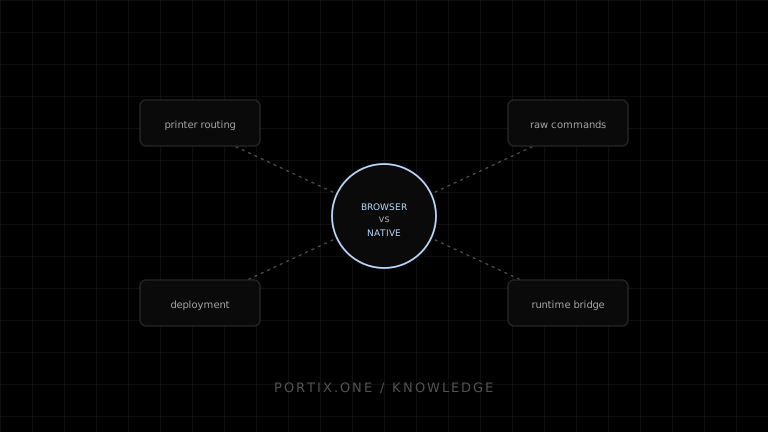
Quick answer
Use browser printing for interactive documents that can pass through the system dialog. Choose native or locally mediated printing for managed operational stations that require fixed routing, unattended jobs, raw device commands, or richer diagnostics. A hybrid model is often best: browser/PDF for documents and a controlled device path for receipts and labels.
Browser printing prioritizes portability and user control. Native printing provides deeper operating-system and device integration but makes the application owner responsible for endpoint software.
Comparison
| Criterion | Browser printing | Native printing |
|---|---|---|
| Deployment | Web application update | Installed application/component lifecycle |
| User confirmation | Normally system dialog | Can support managed silent output |
| Printer routing | Primarily user/OS selection | Application or administrator can configure |
| Output | Rendered pages | Pages, OS APIs, and device-specific integrations |
| Raw commands | Not through window.print() | Possible with appropriate APIs/transport |
| Status | Limited browser visibility | Potentially richer, still device dependent |
| Portability | Strong across modern browsers | Requires OS-specific testing and packaging |
| Security owner | Browser sandbox plus web app | Application also owns privileged local boundary |
Browser strengths and limits
The browser offers zero additional endpoint installation, rapid deployment, familiar previews, and reasonable document portability. Its dialog, pagination variation, driver dependency, and limited physical status are deliberate tradeoffs. WebUSB, WebSerial, and WebHID expose selected device classes in compatible contexts, but permission, support, and protocol complexity limit their use as a universal printing layer.
Native strengths and costs
Native code can enumerate printers, target configured queues, use operating-system spoolers, communicate with device transports, and integrate with managed kiosk workflows. The team must package, sign, deploy, update, monitor, and remove it across supported systems. Native capability does not eliminate driver, spooler, firmware, or physical printer failures.
Local runtime as a bridge
A browser application can connect to an installed runtime over a secured loopback channel. This preserves web delivery while adding a narrow native printing surface. The design must prevent arbitrary sites from connecting, restrict payloads and destinations, and define job acknowledgment precisely.
Decision framework
Choose browser printing when the user can review every job, page rendering is sufficient, and endpoint simplicity dominates. Choose native printing when the workflow is fixed, high-volume, hardware-oriented, centrally administered, and the organization can own endpoint operations. Use both when one application serves office and operational tasks.
Migration strategy
Keep an application-level PrintJob independent of transport. Implement browser, PDF, local-runtime, or native adapters. This lets a team begin with window.print() and add operational routing without rewriting sale, shipment, or invoice logic.
References
- Window.print() — MDN, accessed Jul 21, 2026
- Electron webContents — Electron, accessed Jul 21, 2026
- Introduction to printing — Microsoft Learn, accessed Jul 21, 2026
Related content
comparison
Browser Printing vs Local Printing Runtime
Compare browser-native printing with a local runtime across user interaction, routing, raw commands, status, deployment, and security.
concept
What Are Print Drivers?
Learn how print drivers expose printer capabilities, convert application output into device-ready data, and affect layout, compatibility, performance, and security.
pillar
How Local Printing Runtimes Work
Understand local printing runtime architecture, browser connections, trust, printer discovery, job routing, queues, status, updates, and security.