
concept · esc-pos
ESC/POS Character Encoding
Quick answer
To print ESC/POS text correctly, select a character table supported by the exact printer, encode the string into that table's bytes, and send both the selection command and encoded data. Do not assume UTF-8: many traditional ESC/POS text paths use single-byte code pages, while multilingual or Unicode features are model-specific. When required glyphs cannot be represented reliably, render that text as a monochrome image or use a verified device-specific text function.
ESC/POS printers interpret text as bytes using a selected character table, font system, or model-specific encoding mode. If application bytes and printer state disagree, accented letters, currency symbols, Cyrillic, Arabic, Asian scripts, or emoji can print as unrelated glyphs or question marks.
Bytes are not characters
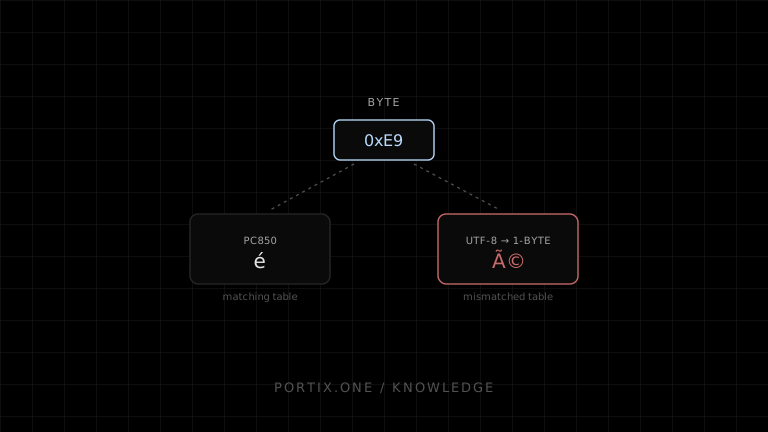
The same byte can map to different glyphs under different code pages. ASCII-range bytes are comparatively stable, but values from 0x80 through 0xFF vary substantially.
Application string: "Café €"
        ↓ encode with selected table
Byte sequence
        ↓ printer interprets with its active table
Printed glyphs
If encoding and active table do not match, the output is mojibake even though transmission succeeded.
ESC t: select a character code table
Epson documents ESC t n for selecting a character code table:
Hex: 1B 74 n
The value of n, available tables, and default vary by printer. Epson’s reference lists examples such as PC437, PC850, WPC1252, PC858, Cyrillic, Greek, Arabic, and Asian tables, but not every model supports every entry.
Do not store a single global mapping of “code page name → n” without a model profile. The same capability assumptions can fail across devices or regional variants.
ESC R: select an international character set
ESC R n selects an international set that replaces a small group of character positions for countries such as the U.S., France, Germany, the U.K., Spain, or Japan on supported printers.
This command is not a replacement for selecting and encoding a complete code page. International set and code table are separate settings in the Epson reference.
Why UTF-8 often fails
UTF-8 represents many non-ASCII characters using multiple bytes. A legacy single-byte printer table interprets each byte independently, so one intended character becomes two or more incorrect glyphs.
JavaScript’s TextEncoder always produces UTF-8:
const bytes = new TextEncoder().encode("Café");
That is correct only when the selected printer path explicitly accepts UTF-8. For a legacy code page, use a vetted encoding library or server/runtime conversion that can report unmappable characters.
A safe text pipeline
Unicode application string
          ↓ normalization policy
Choose supported printer code page
          ↓ strict conversion
Detect unrepresentable characters
       ↙              ↘
send encoded bytes     rasterize/fallback/reject
          ↓
send matching table-selection command
          ↓
physical verification
Avoid silent replacement with ? for transaction-critical content. Decide whether to transliterate, substitute an approved phrase, rasterize, or block printing.
Multilingual and complex scripts
Code points alone do not solve text layout. Arabic and Indic scripts can require shaping, joining, bidirectional ordering, and font coverage. Combining marks and emoji add further complexity.
Possible strategies include:
- A model-specific Unicode or multilingual command path verified on the device.
- Pre-shaped text sent through a compatible printer font system.
- Rasterizing the final text with an embedded or controlled font.
- Using driver-rendered output when platform typography is more important than raw commands.
Rasterization improves visual control but increases data size and removes text semantics from the printer.
Currency and regional symbols
Test currency symbols explicitly. A code page labeled “multilingual” may not include every required symbol, and the euro can differ between related tables. Also test decimal separators, right-to-left totals, tax identifiers, and localized product names.
Never infer the charged currency solely from a printable glyph; transaction data should carry an explicit currency code.
Encoding implementation rules
- Keep application text as Unicode until the printer-encoding boundary.
- Select encoding from a verified printer profile.
- Convert with strict error reporting.
- Send the matching
ESC tcommand before dependent text. - Reset or explicitly reselect state for each owned job.
- Never pass binary commands through string encoding.
- Golden-test exact byte sequences.
- Test every supported language on physical devices.
- Record fallback behavior for unmappable characters.
Troubleshooting wrong characters
| Symptom | Likely cause |
|---|---|
| Accents become two symbols | UTF-8 sent to single-byte table |
| Euro becomes another glyph | Wrong table or unsupported symbol |
| ASCII works, extended text fails | Code-page mismatch |
| One printer works, another fails | Different table index or model support |
| Arabic letters are disconnected | Missing shaping or wrong device mode |
Emoji becomes ? | Glyph cannot be represented |
| Text after image is wrong | Printer state changed or not restored |
Frequently asked questions
Does ESC/POS support Unicode?
ESC/POS device capabilities vary. Do not assume the ordinary text path accepts Unicode or UTF-8; verify the exact model and command mode.
What is the best code page?
The one that is supported by the target printer and represents every required character. There is no universal best table.
Can I mix code pages in one receipt?
On supported devices, you can select another table before a text segment. Manage state carefully and test alignment and fonts.
When should text be printed as an image?
Use rasterization when the device cannot reliably represent or shape required glyphs and the added data, rendering time, and loss of printer-native text are acceptable.
References
- ESC t — Select character code table — Epson, accessed Jul 19, 2026
- ESC R — Select an international character set — Epson, accessed Jul 19, 2026
- ESC/POS Command Reference — Introduction — Epson, accessed Jul 19, 2026
Related content
concept
ESC/POS Commands Explained
Understand ESC/POS command bytes, parameters, printer state, buffers, command families, status, cutting, and safe command construction.
concept
ESC/POS Images
Learn how to convert logos and graphics into monochrome ESC/POS raster data, including sizing, thresholding, packing, chunking, and compatibility.
concept
What Is ESC/POS?
Learn what ESC/POS is, how byte commands control compatible receipt printers, and when to use it instead of driver or browser-rendered printing.