
concept · esc-pos
ESC/POS QR Codes
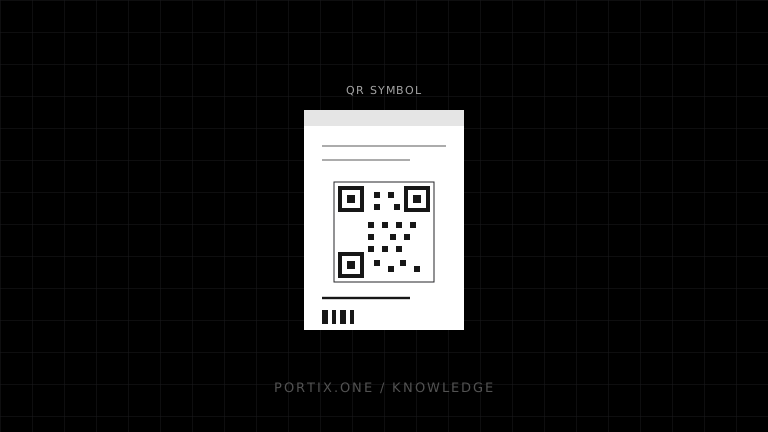
Quick answer
ESC/POS QR printing usually follows four operations: select a QR model, set module size, select error correction, store the payload, and issue the print-symbol function. Epson documents these under the GS ( k command family, including Function 180 for storing QR data and Function 181 for printing it. Parameters and capacity vary by printer, so build commands from the exact model reference and verify the printed symbol—not only the payload bytes.
Compatible ESC/POS printers can generate a QR Code from data stored through a sequence of two-dimensional symbol commands. The application selects supported options, stores the exact payload bytes, and tells the printer to encode and print the symbol. Physical scan quality still depends on dot size, media, heat, quiet zone, damage, and scanner conditions.
The QR command sequence
Initialize known printer state
          ↓
Select QR model
          ↓
Set module size
          ↓
Select error-correction level
          ↓
Store payload in symbol storage area
          ↓
Set alignment if required
          ↓
Print stored QR symbol
Epson’s reference groups supported QR functions under GS ( k. The command contains low and high length bytes plus a symbol category, function, and parameters or data.
Store the payload correctly
For Epson Function 180, the documented form includes:
GS ( k pL pH 49 80 48 d1...dk
The length covers the bytes after pH for that command. Epson defines:
k = (pL + pH × 256) − 3
Calculate lengths from encoded bytes, not JavaScript string length. Non-ASCII characters can occupy multiple bytes in UTF-8, and printer QR byte-mode behavior must be compatible with the scanner and consuming application.
Module size
A module is one black or white square in the QR grid. On a thermal printer, its physical size is a whole number of printer dots.
Too small:
- Individual modules lose definition.
- Missing printhead dots become more damaging.
- Paper texture and heat variation reduce contrast.
Too large:
- The symbol may exceed printable width.
- A larger QR version or payload can fail to fit.
- Receipt length and scan distance increase.
Choose a size from the printer’s supported range, then test the target scanner at realistic distance, angle, lighting, and paper condition.
Error correction
QR error correction adds redundancy. Higher levels can tolerate more damage but create a denser or larger symbol for the same data. Select the level from the expected physical damage and available space, not from the assumption that maximum is always best.
Receipts can crease, fade, tear, or be exposed to heat. Labels may encounter abrasion, curvature, glare, moisture, and packaging seams. Test the final use environment.
Payload design
Keep payloads short, stable, and explicit. A QR Code may contain a URL, identifier, payment payload, signed token, or structured data. Printing successfully does not validate its semantics.
- Use a documented character encoding.
- Avoid unnecessary tracking parameters.
- Use HTTPS for web destinations.
- Do not embed long-lived secrets.
- Version structured payload formats.
- Validate length before constructing printer commands.
- Define behavior if the payload cannot fit.
For URLs, print a human-readable fallback when users may need to verify the destination or continue without a scanner.
Quiet zone and surrounding layout
A QR Code requires clear space around the symbol. The printer’s native symbol command may create symbol modules, but receipt layout must not place text, borders, logos, or cuts too close. Add feed before and after the code and verify the actual physical output.
Do not place a QR Code at an area prone to cutter damage, paper curl, folds, or adhesive seams.
Native QR vs raster image
| Approach | Advantages | Tradeoffs |
|---|---|---|
| Printer-native QR | Compact command payload; device performs encoding | Model-specific support and parameters |
| Rasterized QR | Application controls exact bitmap; works through image path | More bytes; scaling errors can damage modules |
Use native QR when the command implementation is verified. Use rasterization when compatibility requires it, but render each module to an exact integer number of printer dots and never rescale with smoothing.
Verification
A successful phone scan is a functional smoke test, not complete print-quality verification. For regulated or operational symbols, use the applicable standard, verifier, aperture, illumination, and grading process. Sample production over time because printhead wear, media lots, darkness, speed, and maintenance change output.
Common QR failures
| Symptom | Likely cause |
|---|---|
| Nothing prints | Unsupported function, invalid length, empty storage, oversized symbol |
| QR is clipped | Module size or payload exceeds print area |
| Some phones scan, others fail | Marginal module size, contrast, quiet zone, damage |
| Wrong decoded text | Encoding or payload construction mismatch |
| Random receipt text appears | Binary command passed through text encoding |
| Old payload prints | Storage sequence not updated or command rejected |
Frequently asked questions
Does every ESC/POS printer support QR Codes?
No. Verify the exact model, firmware, command functions, parameter ranges, and printable area.
What error-correction level should I use?
Choose based on expected damage, data length, available width, and verification results. Higher is not automatically better.
Can a QR Code contain Unicode?
It can carry bytes that a consuming application interprets with an agreed encoding. Ensure the printer command, payload producer, and scanner application share that contract.
Should I use native QR or an image?
Prefer a verified native command for efficiency. Use a precisely rendered bitmap when device support or cross-model behavior makes it necessary.
References
- GS ( k — Set up and print symbols — Epson, accessed Jul 19, 2026
- GS ( k Function 180 — Store QR data — Epson, accessed Jul 19, 2026
- ESC/POS Commands in Code Order — Epson, accessed Jul 19, 2026
- GS1: Barcode Quality Checks — GS1, accessed Jul 19, 2026
Related content
concept
ESC/POS Barcodes
Learn how ESC/POS printers generate one-dimensional barcodes, including symbology, data validation, module width, height, HRI text, quiet zones, and verification.
concept
ESC/POS Character Encoding
Learn why ESC/POS text prints as incorrect symbols and how code pages, international sets, Unicode, byte encoding, fonts, and rasterization affect multilingual receipts.
concept
ESC/POS Commands Explained
Understand ESC/POS command bytes, parameters, printer state, buffers, command families, status, cutting, and safe command construction.
concept
ESC/POS Images
Learn how to convert logos and graphics into monochrome ESC/POS raster data, including sizing, thresholding, packing, chunking, and compatibility.
concept
What Is ESC/POS?
Learn what ESC/POS is, how byte commands control compatible receipt printers, and when to use it instead of driver or browser-rendered printing.