
concept · browser-printing
How Browser Printing Works
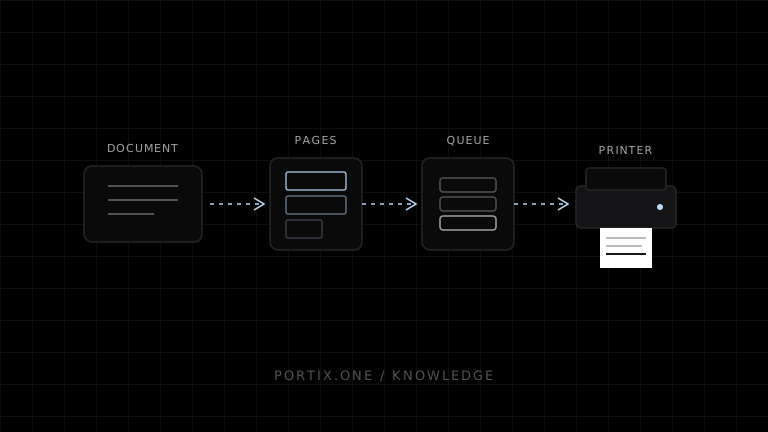
Quick answer
When printing starts, the browser captures the current document, applies print-specific CSS, and fragments continuous content into finite pages. It then presents a print workflow in which the user can choose a printer or PDF destination and supported settings. For a physical printer, the browser hands a job to the operating system, whose spooler queues it and whose driver or modern print path converts it into data the device can process.
Browser printing is a pipeline, not a single API call. The web application prepares a document, the browser lays it out as pages, the user confirms a destination, and the operating system delivers a print job through a queue and driver. Understanding these boundaries makes print bugs easier to diagnose and prevents a website from depending on controls that standard browser APIs do not provide.
The browser-printing pipeline
User or page requests printing
              ↓
Browser checks document and policy state
              ↓
beforeprint event
              ↓
Print CSS, layout, and pagination
              ↓
Preview and user-selected settings
              ↓
PDF destination or operating-system print queue
              ↓
Driver / rendering path / transport
              ↓
Printer
              ↓
afterprint event closes the browser workflow
The browser portion and the operating-system portion overlap in implementation-dependent ways. The model is still useful because it identifies which layer owns each decision.
1. A print request starts
Printing can begin from the browser menu, a keyboard shortcut, or page JavaScript:
document.querySelector("#print").addEventListener("click", () => {
  window.print();
});
The HTML Standard defines window.print() as a request that prompts the user to print the current document. If the document has not completed its post-load work, the request is deferred until it is ready. A document that is not fully active does not start the printing steps.
The browser may also decline or alter the request. For example, sandboxed documents can be prevented from opening modal UI, and a user agent can report that printing is unavailable.
2. The document enters print mode
Before preparing the printable representation, the browser fires beforeprint. A page can use this event for a small state change that CSS alone cannot express:
window.addEventListener("beforeprint", () => {
  document.documentElement.dataset.printing = "true";
});

window.addEventListener("afterprint", () => {
  delete document.documentElement.dataset.printing;
});
Prefer @media print for presentation changes. Event-driven DOM mutations add timing and cleanup risks and can behave differently when a browser generates previews more than once.
3. Print CSS is applied
The browser evaluates CSS for printed media. This lets the page remove interactive controls, adapt typography, and express page preferences:
@media print {
  .site-nav,
  .print-actions {
    display: none;
  }

  main {
    max-width: none;
  }

  h2 {
    break-after: avoid-page;
  }

  figure,
  table {
    break-inside: avoid-page;
  }
}

@page {
  size: auto;
  margin: 12mm;
}
The cascade still applies, so specificity, source order, inherited properties, fonts, and loaded assets affect the result.
4. Continuous content becomes pages
A web page normally scrolls through a continuous viewport. Printed output uses paged media. The browser flows document boxes into a finite page box, then fragments overflowing content into the next page.
CSS can request or avoid breaks with properties including break-before, break-after, and break-inside. These are preferences within a layout algorithm, not a guarantee that an arbitrarily large element will fit on one sheet. Fixed positioning, transforms, large tables, unbreakable strings, late-loading fonts, and images can all affect pagination.
5. The user reviews settings
The browser or operating system offers a print interface. Depending on the destination and platform, it may include:
- Printer or PDF destination.
- Page range and copy count.
- Paper size and orientation.
- Margins and scale.
- Color, duplex, or other device-supported options.
CSS expresses document preferences; the final output also reflects user choices and device capability. A website should not assume that @page { size: A4; }, for example, forces A4 paper into a printer.
6. The job enters the platform print system
For a physical destination, the browser submits printable output to the operating-system printing stack. On Windows, Microsoft documents an architecture built around a print spooler and printer drivers. The spooler accepts jobs, queues or stores them, selects a destination, and sends an appropriate data stream toward printer hardware. Drivers or modern class-driver paths perform device-related rendering and configuration.
Other operating systems use different components and formats, but the general responsibilities remain similar: queue the job, translate it for the destination, transport it, and report available status.
7. The printer produces output
The printer receives data through a connection such as USB or a network protocol. Its firmware interprets the job and drives the print mechanism. Media, consumables, calibration, printable area, and hardware state can now affect the result even if the browser preview looked correct.
A browser’s successful submission does not prove that paper was produced. The device could be offline, out of paper, paused, jammed, or fail after the browser workflow has ended.
What afterprint actually means
The HTML printing steps fire afterprint after the user has been offered the opportunity to print and the browser-side workflow concludes. Treat it as a UI lifecycle signal, not as delivery confirmation.
window.addEventListener("afterprint", () => {
  // Safe use: restore page UI or record that the dialog closed.
  // Unsafe assumption: the physical printer completed the job.
});
Reliable job and device status requires information from the platform queue, a local runtime, a managed print service, or the printer itself.
Where failures originate
| Symptom | Most likely layer to inspect first |
|---|---|
| Navigation appears on paper | Print CSS |
| Table splits or clips | Browser layout and fragmentation |
| Wrong destination selected | User setting or platform print UI |
| Job remains pending | Operating-system queue or connectivity |
| Incorrect symbols or rasterization | Font, rendering path, or driver |
| Preview is correct but paper is cut off | Paper size, printable area, scaling, or device |
| Receipt does not cut | Unsupported browser workflow or missing device command |
Start diagnosis at the first layer capable of causing the symptom instead of treating every problem as a printer failure.
Limitations
- Print preview and physical output are related but not identical environments.
- CSS Paged Media and fragmentation features have uneven implementation depth.
- User settings can override or alter author preferences.
window.print()exposes no standard job identifier or completion status.- Browser JavaScript does not receive a portable printer-control channel from the print method.
Frequently asked questions
Does window.print() send the page directly to a printer?
No. It requests the browser’s printing workflow. The user chooses or confirms a destination before the platform handles a physical job.
When is the printable page captured?
The standard requires the browser to use the relevant document state when it offers the printable form. Exact preview and rendering implementation details vary, so ensure critical assets are ready before printing.
Why can preview differ across browsers?
Browsers can differ in supported paged-media features, defaults, font rendering, headers and footers, and integration with the platform print UI.
Can a page know whether printing succeeded?
Not through window.print() or afterprint. A page can know that the browser workflow ran, but not that a physical device completed the job.
References
- HTML Standard — Printing — WHATWG, accessed Jul 18, 2026
- Printing — CSS — MDN Web Docs, accessed Jul 18, 2026
- CSS Paged Media Module Level 3 — W3C, accessed Jul 18, 2026
- CSS Fragmentation Module Level 3 — W3C, accessed Jul 18, 2026
- Introduction to Printing — Microsoft Learn, accessed Jul 18, 2026
Related content
concept
Browser Printing Architecture
Understand the browser, paged-media renderer, print UI, operating-system spooler, driver, transport, and printer layers in a web printing system.
concept
Browser Printing Limitations
Understand the limits of window.print(), print CSS, printer selection, silent printing, job status, hardware commands, and cross-browser consistency.
concept
Browser Printing Security
Learn the trust boundaries, threats, privacy risks, and practical controls involved when a website prints through a browser or a local printing integration.
concept
What Is Browser Printing?
Learn how browser printing turns a web page into paper or PDF, what developers can control with JavaScript and CSS, and where browser-based printing falls short.