pillar · browser-printing
The Complete Guide to Browser Printing
Quick answer
window.print() opens the operating system's print dialog for the current document. Reliable browser printing depends on a dedicated print stylesheet, making sure assets are loaded before the dialog opens, and accepting that pagination, headers, footers, and dialog behavior are ultimately controlled by the browser and operating system, not the page.
Browser printing is the default way any web page reaches paper: the browser renders the current document into a paginated form and hands it to the operating system’s print pipeline.
What happens after window.print()
Calling window.print() asks the browser to open its native print dialog for the current document. The browser generates a paginated representation of the page, applies any print-specific styles, and lets the user choose a printer, page range, and options before confirming or canceling.
Building a print view with CSS
@media print {
  nav, .no-print { display: none; }
  body { font-size: 12pt; }
  a[href]::after { content: " (" attr(href) ")"; }
}
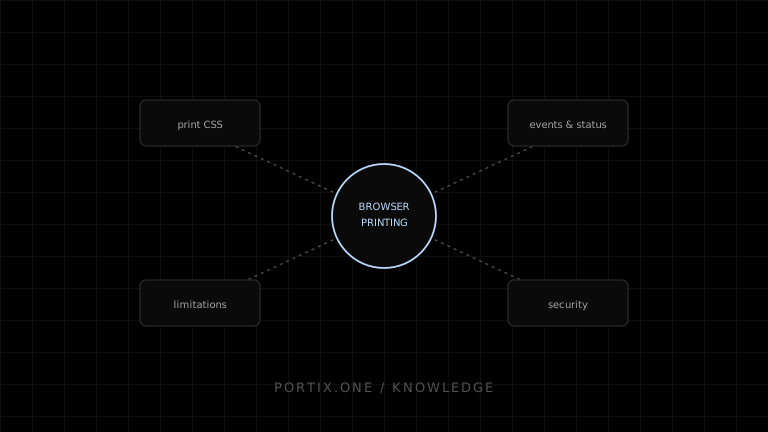
A dedicated print stylesheet hides interactive chrome, adjusts typography for paper, and can reveal information — like link URLs — that only matters in a printed context. The CSS Paged Media Module adds page-level control such as margins, page breaks, and running headers or footers where supported.
Assets and timing
Images, fonts, and other assets referenced by print styles must be loaded before the dialog opens, or they may print blank or fall back to a default font. Trigger printing after confirming asset readiness rather than immediately on page load.
Events and status
Browsers expose beforeprint and afterprint events so an application can adjust the DOM right before rendering and restore it afterward. Neither event confirms that a physical page actually left the printer — they only bracket the dialog and rendering process.
Common limitations
Pagination, margins, and header/footer content are ultimately controlled by the browser and the user’s dialog choices, not fully by the page. There is no reliable way to detect whether the user canceled the dialog or the job printed successfully. Silent, unattended printing to a specific printer is intentionally not supported through this API.
Security and privacy
Because printing can expose on-page content and metadata, avoid revealing sensitive data in print-only styles unless that is the explicit intent, and never assume printed output is private just because the screen view is.
When to use another path
Browser printing suits reviewable, occasional documents. For unattended, high-volume, or device-specific output, see Browser Printing vs Native Printing and How Local Printing Runtimes Work.
Troubleshooting map
References
- Window.print() — MDN, accessed Jul 21, 2026
- @media — MDN, accessed Jul 21, 2026
- CSS Paged Media Module — W3C, accessed Jul 21, 2026
Related content
comparison
Browser Printing vs Local Printing Runtime
Compare browser-native printing with a local runtime across user interaction, routing, raw commands, status, deployment, and security.
troubleshooting
Browser Blocks Printing
Troubleshoot blocked browser printing caused by missing user activation, pop-up behavior, sandboxed frames, permissions policy, or enterprise controls.
troubleshooting
Browser Print Dialog Always Opens
Understand why the browser print dialog opens and choose a safe printing path when a workflow requires unattended output.
troubleshooting
Printer Prints Blank Pages
Find blank-print causes in HTML/CSS, page sizing, images, drivers, thermal media, command language, and application data.