
troubleshooting · esc-pos
Receipt Paper Never Cuts
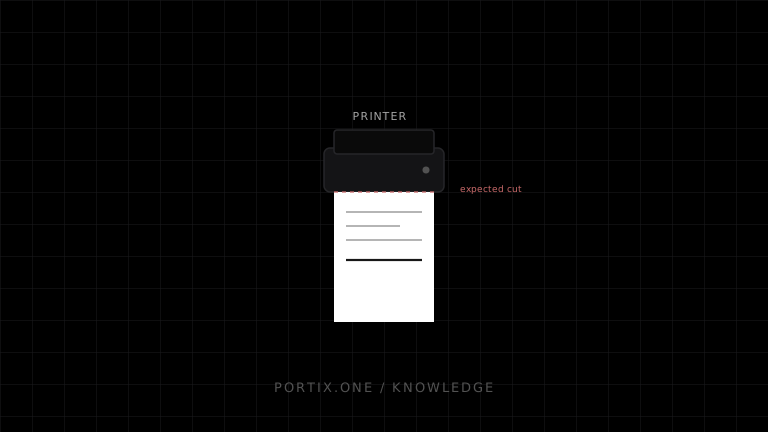
Quick answer
Confirm the printer has an automatic cutter and that its self-test or vendor utility can activate it. Then verify the exact cut command for the model, ensure it reaches the printer through a raw-capable path, and feed enough paper before cutting. If vendor tests fail, inspect jams and seek hardware service.
Diagnose it
- Check the model specification for cutter hardware.
- Run the built-in self-test or vendor cutter test.
- Inspect error lights, cover closure, paper path, and cutter jams.
- Send initialization, one text line, feed, and the documented cut command.
- Confirm the queue does not render or strip raw bytes.
- Check printer configuration and driver finishing options.
- Inspect the submitted payload for truncation before its final bytes.
Important distinctions
A tear-bar model cannot be fixed in software. Some printers support full and partial cut differently, and some require a minimum feed distance. Emulations can use different command parameters even on similar hardware.
Safe recovery
Do not repeatedly energize a jammed cutter. Power down according to the manufacturer’s procedure, remove obstructions only as documented, and route jobs to a fallback printer if hardware remains in error.
Verify
Run multiple short and long receipts, cover-open recovery, and low-paper scenarios. Confirm the job ends once and cuts only after all content.
References
- ESC/POS command reference — Epson, accessed Jul 21, 2026
Related content
concept
Receipt Printers Explained
Learn how receipt printers work, the differences between thermal and impact models, and how paper, cutters, connectivity, commands, and software affect POS printing.
troubleshooting
Receipt Paper Cuts Too Early
Fix early receipt cuts caused by embedded commands, partial jobs, incorrect length fields, asynchronous writes, or premature finalization.